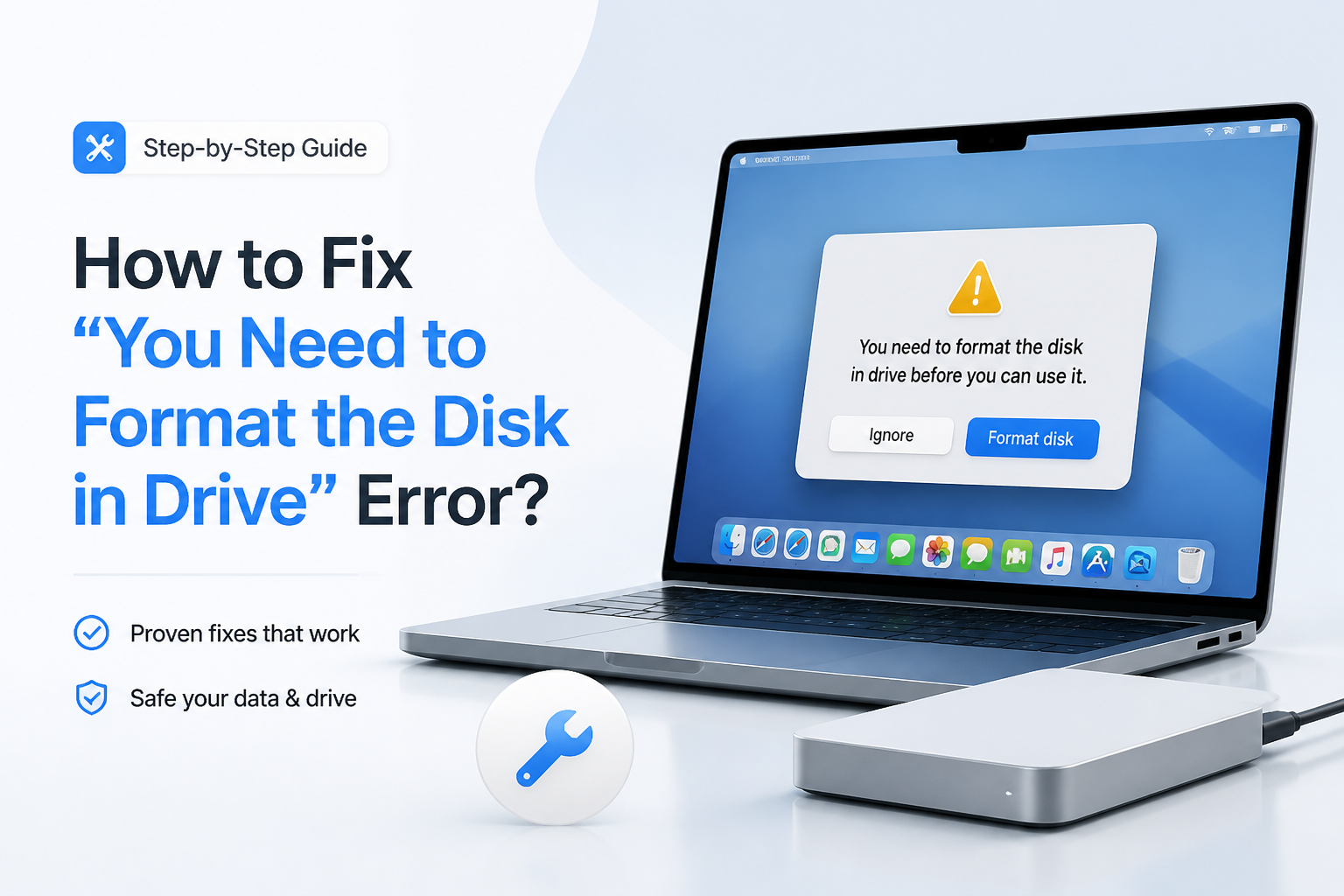
How to Fix “You Need to Format the Disk in Drive” Error?
That Windows format prompt does not always mean the files are gone. Start by protecting the data, then work from low-risk checks toward repair or replacement.
Do not click Format if the disk holds files you need. Cancel the prompt, stop writing to the device, then scan it with Disk Drill or create a byte-for-byte image. Once the files are safely stored elsewhere, check the connection, repair the file system, or format the disk.
Formatting is destructive. Cancel the prompt until important files have been recovered. Stop using the drive completely if it clicks, vanishes during use, shows the wrong capacity, or takes an unusually long time to respond.
Recover Files Before Repairing the Disk → Disk Drill
Scans inaccessible, RAW, lost, or formatted volumes · Previews recoverable files · Windows, macOS
Choose the Right Fix for the Disk Format Error
Protect the files first, then move toward repairs.
| Method | Best for | Time | Success rate |
|---|---|---|---|
| 1. Recover Your Files With Disk Drill TRY FIRST | Important files on a RAW or unreadable drive | ~15 min | ● 88% |
| 2. Test the Drive With a Different Connection | USB cables, readers, ports, power faults | ~5 min | ● 55% |
| 3. Assign a New Drive Letter in Disk Management | Healthy volumes with a missing letter | ~3 min | ● 48% |
| 4. Repair the File System With CHKDSK | Minor NTFS, exFAT, or FAT32 corruption | ~10–60 min | ● 62% |
| 5. Format or Replace the Drive After Recovery | Restoring use after the files are safe | ~5–30 min | ● 95% |
When Software Cannot Safely Fix the Disk Format Error
Skip DIY scans if a hard drive clicks, grinds, spins down repeatedly, or disappears from Disk Management. The same applies when its capacity is reported incorrectly. Those clues point toward hardware trouble, where every power cycle may reduce the remaining recovery window.
Disconnect the device, label it, then contact a reputable data recovery lab. Ask for an evaluation plus a written quote before approving work.
Top 5 Ways to Fix the “You Need to Format the Disk” Error
01 Recover Your Files With Disk Drill
Best first move when the unreadable drive still contains files you care about
~15 min
Recover Your Files With Disk Drill
Best first move when the unreadable drive still contains files you care about
The format warning often appears after Windows loses access to a drive's file system. Recover valuable files before attempting repairs because CHKDSK or formatting can change the disk.
- Click Cancel when Windows asks to format the disk. Do not save new files to it.
- Download Disk Drill, then install it on your internal system drive or another healthy disk, never the problem drive.
- Open Disk Drill, select the full physical device that contains the inaccessible volume, then click Search for lost data.
- Let the scan finish. Use filters, search, plus file previews to check the results.
- Select the files you need, click Recover, then save them to a separate healthy drive.
- Open several recovered photos, videos, documents, or archives before doing anything else to the original disk.

02 Test the Drive With a Different Connection
A quick check for weak cables, damaged readers, or unreliable USB ports
~5 min
Test the Drive With a Different Connection
A quick check for weak cables, damaged readers, or unreliable USB ports
A bad adapter can make a healthy file system look unreadable. This method is worth trying once, though repeated reconnecting is a poor idea if the disk has physical symptoms.
- Eject the device through Windows if that option is available, then unplug it.
- Inspect the connector for bent pins, dirt, looseness, or obvious damage.
- Connect the device directly to another USB port instead of using a hub or front-panel extension.
- For an external hard drive, test a compatible cable plus the correct power adapter.
- For an SD or microSD card, try a different reader. Check the adapter's lock switch too.
- If possible, test the device on one other computer. Cancel any format prompt that appears.
03 Assign a New Drive Letter in Disk Management
Useful when Windows detects the volume but its letter is missing or conflicting
~3 min
Assign a New Drive Letter in Disk Management
Useful when Windows detects the volume but its letter is missing or conflicting
A missing or reused drive letter can stop a valid volume from opening normally. This change does not format the device, though it will not repair a RAW file system.
- Right-click Start, then open Disk Management.
- Find the volume by matching its capacity. Do not rely only on its current letter.
- If the volume shows a normal file system plus a healthy status, right-click it.
- Choose Change Drive Letter and Paths, then select Add or Change.
- Pick an unused letter near the end of the alphabet, such as
R:orV:. - Open File Explorer, then test the new drive letter.
04 Repair the File System With CHKDSK
Try this only after recovery when Windows still recognizes NTFS, exFAT, or FAT32
~10–60 min
Repair the File System With CHKDSK
Try this only after recovery when Windows still recognizes NTFS, exFAT, or FAT32
CHKDSK can correct file-system metadata errors that trigger the format message. It also writes changes to the disk, so it is not the safest opening move for irreplaceable data.
- Recover or copy every accessible file before starting the repair.
- Check Disk Management. Skip this method if the file system is shown as RAW, the capacity is wrong, or the disk keeps disconnecting.
- Open Windows Terminal (Admin) or Command Prompt (Admin).
- Enter
chkdsk E: /f, replacingE:with the exact letter of the affected volume. - Read the command carefully before pressing Enter so you do not target the wrong disk.
- Wait for the process to finish without unplugging the device, then restart Windows if requested.
05 Format or Replace the Drive After Recovery
The final software fix once your files are safe or no longer needed
~5–30 min
Format or Replace the Drive After Recovery
The final software fix once your files are safe or no longer needed
Formatting creates a fresh file system, which usually removes the prompt when logical corruption is the cause. It erases the volume's existing file references, so verify the recovery first.
- Confirm that the recovered files are stored on a different physical device.
- Open several files from each important folder. Check large videos or archives from start to finish where practical.
- In File Explorer, right-click the affected volume, then select Format.
- Choose NTFS for a Windows-only drive or exFAT for broad device compatibility.
- Clear Quick Format if you want Windows to perform a longer surface check. This can take hours on a large hard drive.
- Complete the format, reconnect the device, then copy a few test files onto it. Replace the drive if errors return.
Which Disk Format Error Fix Should You Try First?
Recovering files with Disk Drill is the safest first move when the problem drive contains anything valuable. A cable test or new drive letter makes sense when the hardware looks stable, while CHKDSK belongs later because it changes file-system data. Format only after the recovery has been checked on another disk.Keep the problem drive untouched until you can open the recovered copies from a separate storage device.